Send the texts you get to AveryIQ
Set up your iPhone so texts from your clients reach AveryIQ, even without a team number. Texts from other numbers wait for you to choose.
Updated
When you text from your own phone, Avery can't see the replies. Text forwarding fixes that. Your iPhone sends each text you get to AveryIQ.
- A text from someone in your AveryIQ contacts goes into their thread. Avery reads it and can write your reply.
- A group text goes into the group's thread when everyone in it is in AveryIQ. Avery's reply goes to the whole group.
- Anything else is held for review: a text from any other number, or a group text with someone new in it. Avery doesn't read it. You choose to add it or ignore it.
You set it up once, in the Shortcuts app on your iPhone. It takes about two minutes.
Before you start: add your mobile number
AveryIQ needs your own number to tell a group text from a text sent just to you. Tap More, then Settings, then Text forwarding, then Your mobile number. The setup steps show up once it's saved.
If your mobile number is ever removed, forwarding pauses. Your texts wait on your iPhone for up to a week and come in once you add it again.
1. Make the automation
- Open the Shortcuts app and tap Automation. Tap New Automation, or + if you already have one.
- Choose Message.
- Tap Message Contains and type a single space. Almost every text has a space, so it runs for almost every text.
- Choose Run Immediately, so it runs without asking you. Then tap Next.
- Tap New Blank Automation. Search for Send Text to AveryIQ and tap it.
2. Fill in the action
The action has three rows: Content, Sender and Recipients. Each one gets the item with the same name.
- Tap Content. Tap Shortcut Input above the keyboard.
- Tap Shortcut Input in the row and choose Content.
- Do the same for Sender, choosing Sender.
- Do the same for Recipients, choosing Recipients. This is how AveryIQ knows a text came from a group, like a couple texting you together.
- Tap ✓ to save.
The same steps are in the app. Tap More, then Settings, then Text forwarding, then How to set up.
Your iPhone may show a small banner each time it runs. That's normal.
3. Check that it works
Ask a friend to text you a full sentence. Then open Text forwarding in Settings. It says when the last text came in.
Texts held for review
When a text is held, Texts forwarded from your personal phone shows at the top of your Inbox. Tap it to see each number or group and what they said. For each one, choose:
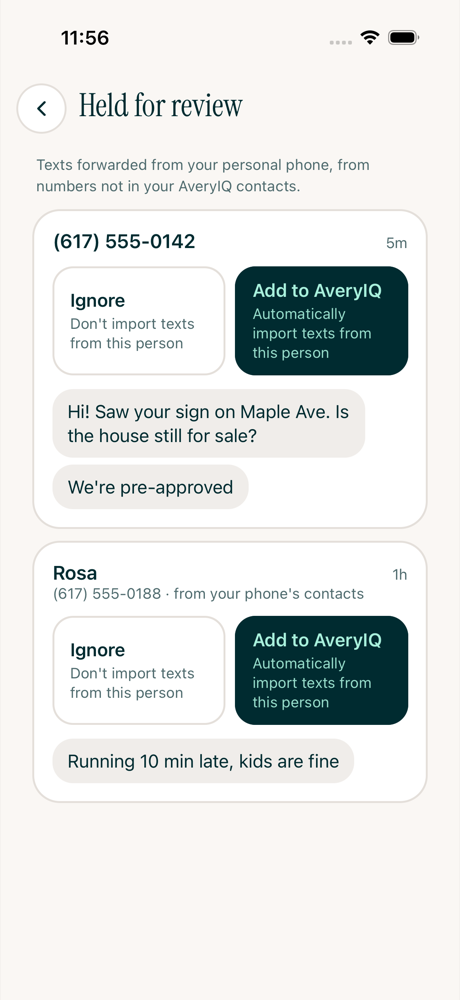
- Add to AveryIQ. For a number, type their name, or add the number to someone you already have. For a group, the new people are added with their names from your phone's contacts, or with no name if you don't have them saved. The texts move into the thread, and new ones go there too.
- Ignore. The texts aren't imported, now or later. Tap Undo right away if you change your mind.
A group is separate from the people in it. Ignore your family group text, and texts from your dad still come in when he texts you on his own.
Changed your mind later? Open Text forwarding in Settings. Your ignored numbers and groups are listed there, each with Add to AveryIQ.
Texts you don't add or ignore are deleted after 30 days.
Texts with your teammates in them
When a client texts you and a teammate together, it goes into the client's thread, or the group's when there's more than one client. Your teammate is never added as a person. When your teammate also forwards their texts, the same text comes in once, not twice. A teammate's reply shows up as theirs, because your iPhone got it too.
For this to work, each teammate adds their mobile number under More, then Settings, then Account.
Texts between just you and your teammates aren't imported.
What it doesn't do
- Texts you send aren't included. Send from a card or a person's thread, and AveryIQ keeps a copy. In a group with a teammate who forwards texts, your texts come in through their iPhone.
- One-word texts may not come through. A text like "Yes" or "Thanks" has no space. Avery still checks in with you before following up.
- Photos don't come through. Only the words of a text do.
- It's iPhone only.
A team number gets every text, both ways, without any of these limits.